
Understand more.
Miss less.
Live bilingual subtitles for videos, live streams and online courses, even when a video has no captions. Look up terms and ask questions as you watch.
Add to ChromeVersion 2.5.0Works in Chrome and Microsoft Edge.
Can’t reach the Chrome Web Store? Download the offline package.
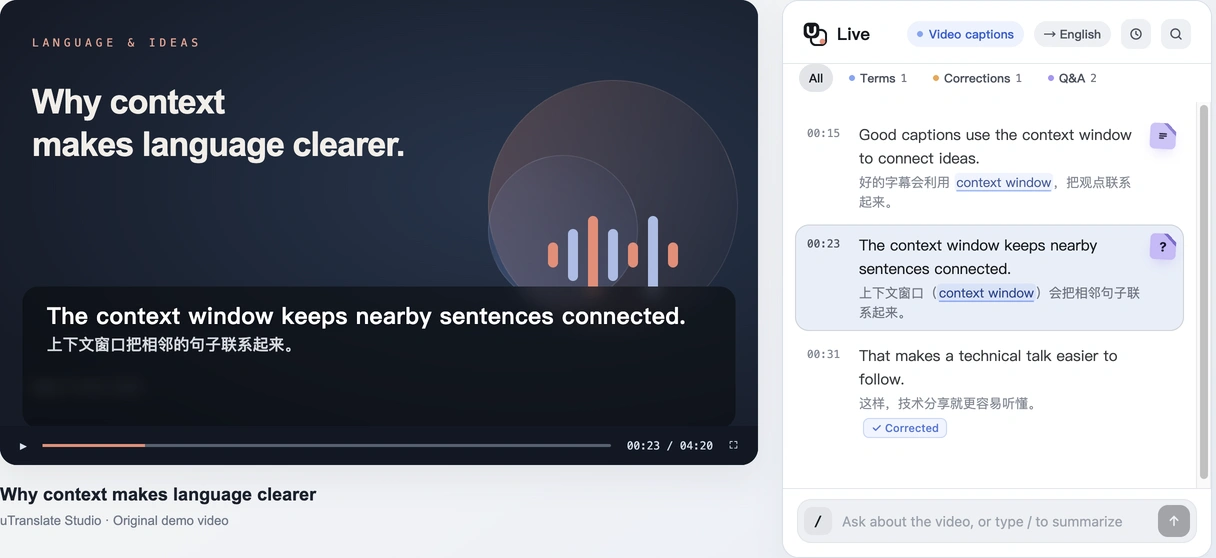
From watching to understanding.
Follow every sentence
Read original and translated captions together.
Go beyond translation
Explore terms, summaries and answers in the side panel.
Keep what matters
Review, search and export your saved caption history.
Start with a video.
Open a video
Play a video in Chrome or Edge, then open uTranslate Live from the toolbar.
Turn on captions
Use available video captions or live recognition, and choose your translation language.
Read, ask and review
Follow the captions, explore unfamiliar terms and ask about what you are watching.
No account required. Speech recognition, translation and AI features use cloud services.
Frequently asked questions
How can we help?
Email supportIs uTranslate Live free?
Yes. Install it from the Chrome Web Store and use it without an account or sign-up. The daily allowance is ample for normal use; limits are there only to prevent abuse.
Which websites does it work on?
Most pages where Chrome or Edge plays video or audio, including YouTube, Bilibili, Xiaohongshu (RedNote), live streams, online courses and podcasts. Protected content, pages the browser restricts and some players may not work.
Can it translate a video that has no subtitles?
Yes. If a video has subtitles, uTranslate Live translates them. If it has none, it recognizes the speech in the tab’s audio as you watch and turns it into translated captions.
Which languages does it translate into?
30 languages, including English, Simplified and Traditional Chinese, Spanish, Hindi, Arabic, French, Portuguese, Russian, Japanese, German and Korean. Show the translation only, both languages together, or the original only.
What else can it do besides translate?
In the side panel you can read and search the captions, look up terms, ask questions about the video, and summarize the last 5 minutes or everything so far. Answers point back to the matching captions. Caption history can be exported as SRT, plain text or Markdown, and you can translate selected text on any page from the right-click menu.
What do I need to use it?
Chrome or Microsoft Edge 116 or later on a computer, and an internet connection. Speech recognition, translation and AI features run in the cloud.
Does it work in Microsoft Edge?
Yes. In Edge, open the uTranslate Live page on the Chrome Web Store, allow extensions from other stores when Edge asks, then add it. It is the same extension, with the same features and automatic updates.
How is my data handled?
After you agree to the data-use notice, captions, translations, page addresses and titles, questions and usage records are uploaded, linked to a random installation ID. Our retention policy for these cloud records is no more than 30 days, and they are not used to train models. Incognito windows don’t save local caption history. Details are in the privacy policy.
Install without the Chrome Web Store
If the Chrome Web Store is blocked or unavailable for you, install uTranslate Live from the offline package. It is the same extension, packaged for manual installation.
Download offline package- Unzip the file into a folder you will keep. Your browser runs the extension from this folder, so don’t move or delete it.
- Open
chrome://extensions(in Edge,edge://extensions) and turn on Developer mode. - Click Load unpacked and select the unzipped folder (the one containing manifest.json).